Get material in, take deliverables out
Every way material gets into a conversation - files, PDFs, screenshots, web pages, Drive - and every way an answer leaves it: diagrams, charts, images.
Browse documentation
24 providers
Alibaba CloudAnthropicAzure OpenAIAWS BedrockCerebrasCohereDeepseekGoogle GeminiGroqLM StudioLocalAIMetaMaterial goes in through the composer, and deliverables come back out of the messages. Whatever arrives becomes a draft first: a chip names the conversion Big-AGI chose, you can swap it, and only then does it send. What comes back renders in place, with a toolbar for taking it away.
Attachments: every way in
| Source | How | What the model receives |
|---|---|---|
Files - PDF, DOCX, images, code | menu, Ctrl + Shift + F, or drag and drop | Text, images, or both - per the chip |
Web - Import from web pages | menu, Ctrl + Shift + L, or paste a link | The page as text, markdown or clean HTML |
Drive - Attach Google Drive files | menu, then the Google picker | The exported form of the file |
Clipboard - Auto-adapts images and text | menu, Ctrl + Shift + V, or plain paste | Text, a markdown table from copied rich text, or an image |
Screen - Capture tabs, apps, and screens | menu | An image, with optional OCR text |
Camera - Capture photos with optional OCR | menu | An image, with optional OCR text |
You know it worked when a chip appears under the composer carrying the file name and the conversion in force. The size ceiling is on the whole request, not on the file: context and limits.
PDFs and scans
The default Auto converter runs a chain, so a scan works without you choosing anything:
| Step | Result |
|---|---|
| 1 extract the PDF's own text | ≥ 160 chars/page -> sent as text, badge NNN chars/page |
| 2 else render the pages as images (32 at most) and OCR them | ≥ 160 chars/page -> sent as OCR text |
| 3 else attach the page images | badge not a text page |
Four converters override that chain. PDF Text sends the file's own text; PDF -> OCR (for scans) reads its images; PDF -> Images attaches the pages as pictures. Pick PDF -> Text + Images when the figures matter as much as the words. Handwriting takes the same OCR path. The warning Very little text extracted via OCR - this PDF may contain mostly images/diagrams. means: send the pages as images instead.
Images
| Converter | What it sends |
|---|---|
| Image (high detail) · Image (low detail) · Image (original quality) | |
| As Image (file type) | anything that is not png, jpeg, webp or gif |
| Add Text (OCR) | a checkbox - recognised text alongside the picture, not instead of it |
| AI Caption (Text) | swaps the picture for a written description |
| No Image |
The detail chips trade reading resolution against cost. AI Caption (Text) needs a model on the Vision job (connect an AI service).
Web content
Paste a link, or Add Web Content from the menu - up to 5 links at once.
| Option | What it does |
|---|---|
| Markdown (suggested) · Text · Clean HTML | the form the page arrives in |
| Add Screenshot | a picture of the page too |
Capture and search are served for you on the hosted app; on your own instance you supply the browsing endpoint and search keys (optional services).
Sync local files and folders
Drag a file in and Big-AGI keeps track of it. Reload it to pull in edits made elsewhere and see what changed. Save the model's version back over it, behind an Overwrite File confirmation. The conversation stays in sync with a file another program is editing. The pairing does not survive a page reload - re-pair after a refresh. Files opened or dropped from a Chromium browser pair; a pasted or downloaded file cannot. Change-watching needs a browser interface Android and iOS lack. Text files past the size cap are refused (context and limits).
Google Drive
| Google format | Exported as |
|---|---|
| Doc | Markdown |
| Sheet | CSV of the first sheet only |
| Slides | |
| Drawing | SVG |
Google's own formats are exported before they travel, and the chip prefix says into what; everything else downloads unchanged. All of it travels with the request to your AI service: what leaves your browser.
What renders
A code block with the right language tag renders in place instead of as source:
| You get | When the block is tagged |
|---|---|
| A diagram | mermaid, or plantuml - PlantUML is also recognised from its own source |
| A vector image | svg, or recognisable SVG source |
| A chart | chartjs, with a configuration in plain JSON - the format forbids functions, and a configuration containing them renders empty |
| A live web page | html, or a block that is plainly a whole page |
| Rendered markdown | markdown, with a Show Preview / Show Code toggle |
| Highlighted code | any other language tag |
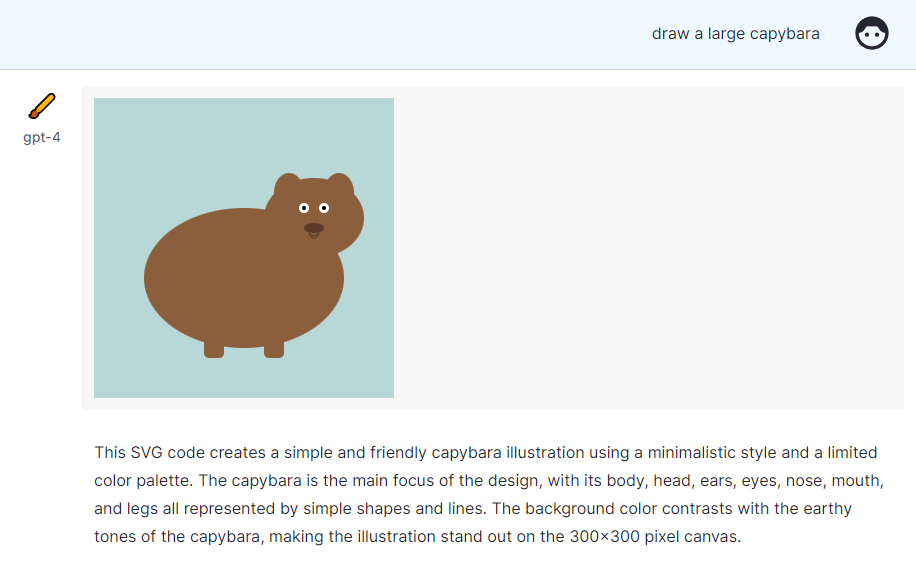
You know a block rendered when the source is replaced by the diagram, chart or page itself. Outside code blocks, replies also render full markdown with tables and task lists, mathematical notation, word-level differences between two versions, and inline images.
Whether the model emits those blocks at all is a property of your persona: what a persona is.
Taking it out
Most attachments and media are editable in place, and downloadable. That covers images, code, and the hosted code and files Anthropic, Gemini and OpenAI models generate. Diagrams and charts download as images; a rendered result goes back into the prompt as an image.
| Button | What you get |
|---|---|
Download PNG / Copy PNG | the diagram or chart as an image, transparent by default |
Attach as image | the rendered result back into the conversation, for the model to look at |
Copy Code | the block's raw source, for your editor |
Fullscreen / Present | the artifact filling the screen |
Hover a rendered block and that toolbar appears; on Chart.js, hold Shift for the transparent version. Copy PNG needs clipboard permission; where that is withheld, Download PNG still works.
Running HTML code
When a model writes HTML, it renders as a real page inside a sandboxed iframe in your browser, run manually or automatically. The frame carries a Show Code / Show Web Page toggle, a Reload that re-runs it, and fullscreen. Scripts in that page run, so an interactive prototype works. A page that depends on something the frame cannot fetch comes up blank; ask for a self-contained one, then Reload.
That frame is the only execution surface: no Big-AGI backend runs code. The exception is a model's own vendor-side sandbox, a model setting (model settings).
Generating an image
Two ways to a picture. Image-capable chat models draw inline, as part of the conversation: Nano Banana, or the GPT-5 family with image generation switched on in the model's settings. Image generation engines turn a prompt straight into an image - OpenAI, Azure, OpenRouter or a local server, linked to an AI service you already configured. Quality, background transparency, format and aspect ratio are set on the engine.
| To draw | Where |
|---|---|
/draw <prompt> | in any chat |
| Create Picture | Message > menu - that message is the prompt |
The picture arrives as an image in the message. Right-click to save it, or Attach as image to keep working on it.
Related
BIG-AGI
Resources
© 2026 Token Fabrics·Built with passion in San Diego