
The AI Inspector
The AI Inspector captures the literal JSON request that left your browser: how to open it, what each frame proves, and what it leaves out.
Browse documentation
25 providers
Alibaba CloudAnthropicAzure OpenAIAWS BedrockCerebrasCohereDeepseekGoogle GeminiGroqLM StudioLocalAIMetaThe AI Inspector is an expert-level developer tool that shows the literal JSON request that left your browser for the turn you just sent - proof of what was sent, and of which model and settings produced it.
The prompts Big-AGI assembles are open to you: the exact bytes that leave for the AI service. It is the same packet a browser's network view would show, inside the app and without DevTools. Open, Free and Pro all carry it.
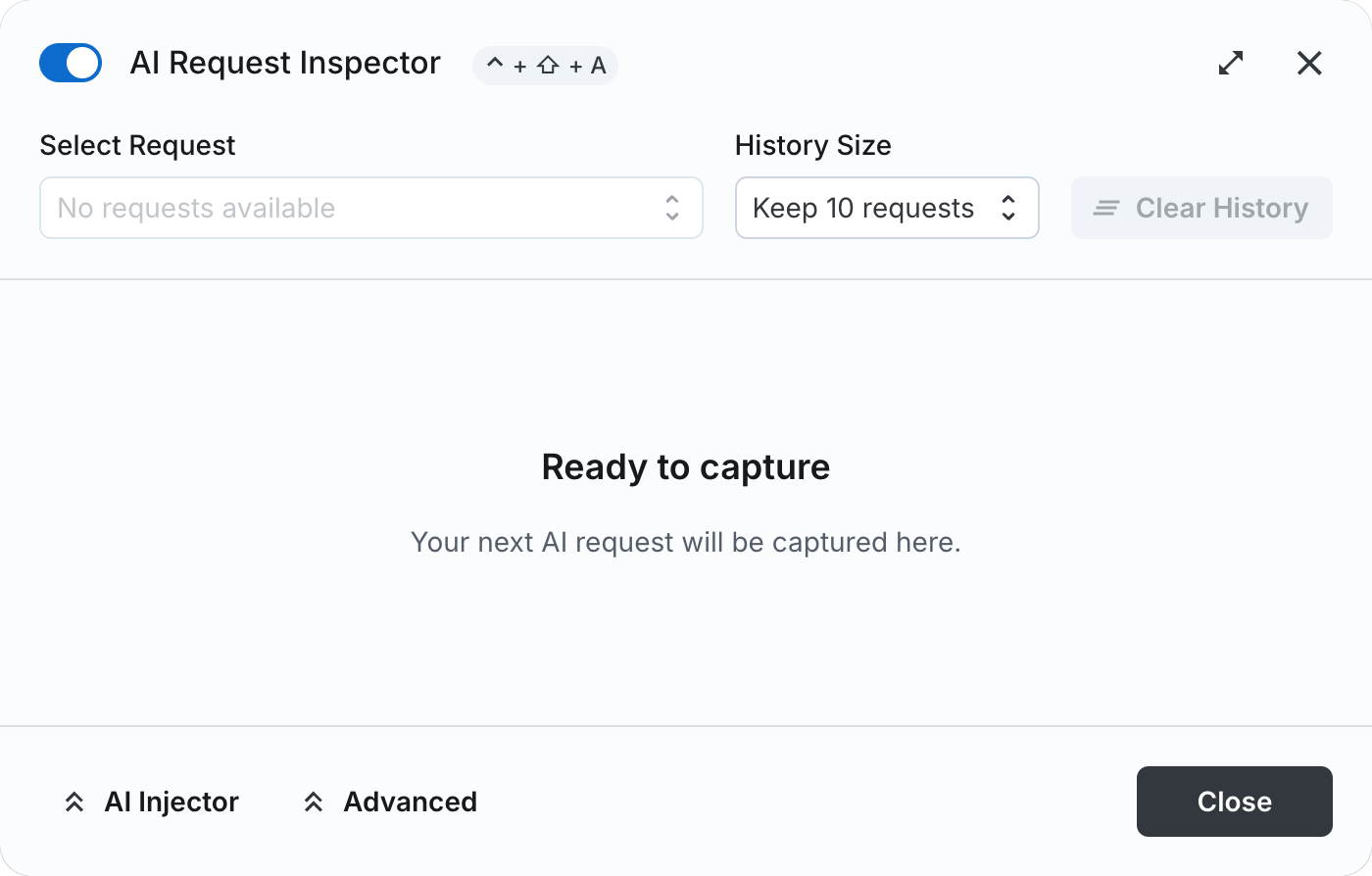
Open the inspector
| How to open it | What it says |
|---|---|
| Settings -> Tools -> AI Inspector | Inspect live AI requests |
Ctrl + Shift + A | the same dialog |
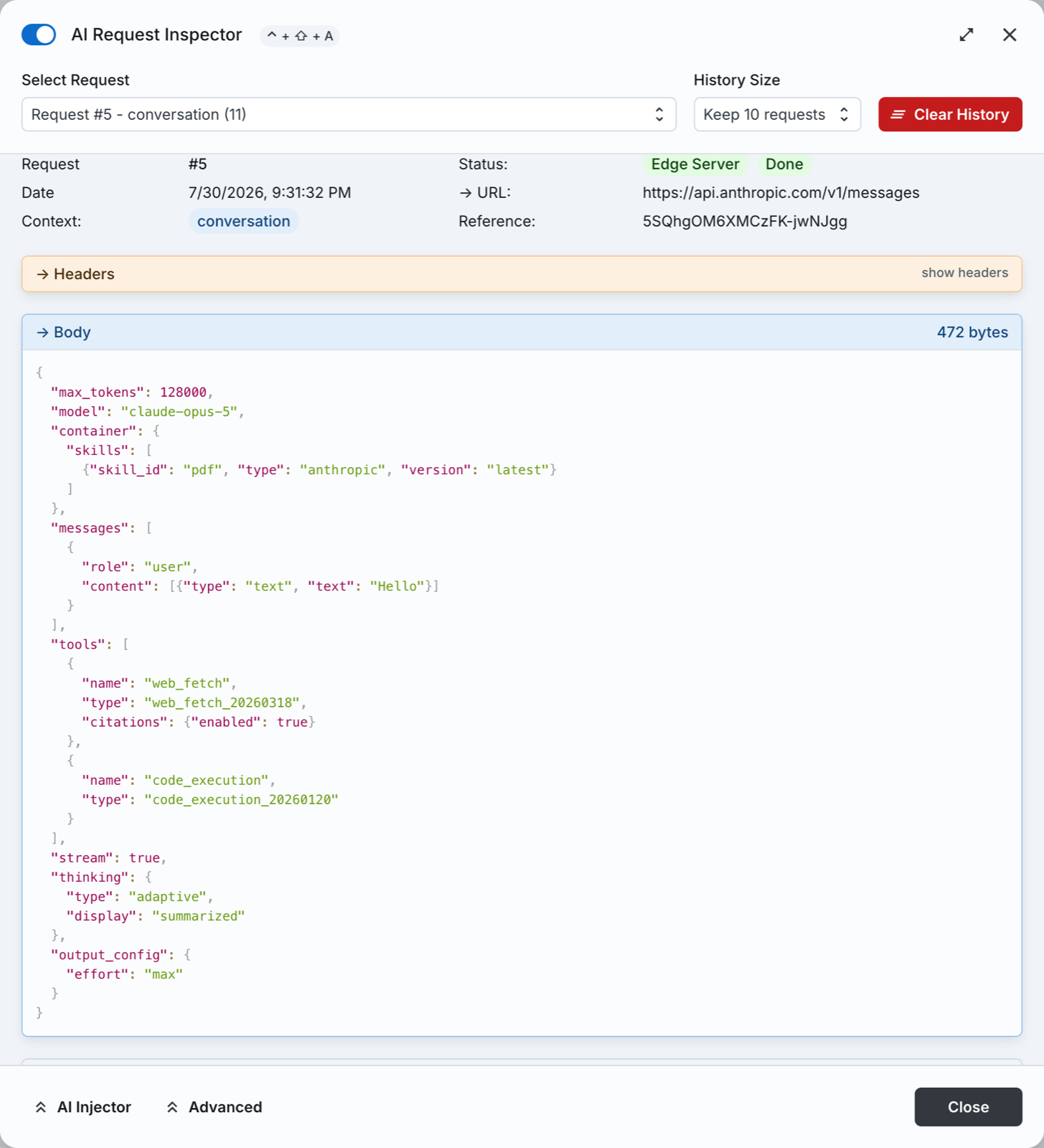
That request body holds the assembled system prompt and the history as it was sent. The model, its parameters, the tool declarations and each attachment part are fields of it too. The first open in a session arms capture by itself; after that the switch in the title bar controls it. Turn it on, send a message, and the frame appears. History holds 5, 10, 20 or 50 frames, 10 by default, in memory only and with no export button.
What each frame shows
| Field | What it is |
|---|---|
| Request number | a counter for this session |
| Status | two chips: the transport - Direct Connection or Edge Server - and Done or In Progress |
| Date | local timestamp |
| URL | the upstream endpoint, decoded |
| Context | what asked for it: conversation, beam-scatter, chat-ai-title, and so on |
| Reference | the id of the thing that triggered it |
| Headers | the request headers block |
| Body | the literal JSON request, pretty-printed, with a byte-size readout |
| Particles | the response stream as discrete timestamped events; aborted ones flagged |
The transport chip records which path the request took. For a record of a run - a methods section, a file note - copy the Body block, which copies as JSON. Take the header line with it: request number, transport chip, date, URL, context, reference. Make the copy before you reload.
Read the URL line before you copy or screenshot a capture: it is displayed decoded, and on the browser route it can carry a key. Keep your key safe.
Which requests carry a body
| The frame | Contexts |
|---|---|
| Body present, in a production build | conversation · scratch-chat · chat-react-turn · beam-scatter · beam-gather · beam-followup |
| Body absent, response particles only | chat-ai-title · chat-attachment-prompts · aifn-image-caption · summarize · the follow-up diagram and chart generators |
Your own turns and your Beam calls are the first list. The background utility calls are the second, and they are skipped by the frame picker's auto-selection. To audit those payloads, use the browser's own network view, below. An instance running a development build shows headers, the profiler and every context.
Advanced
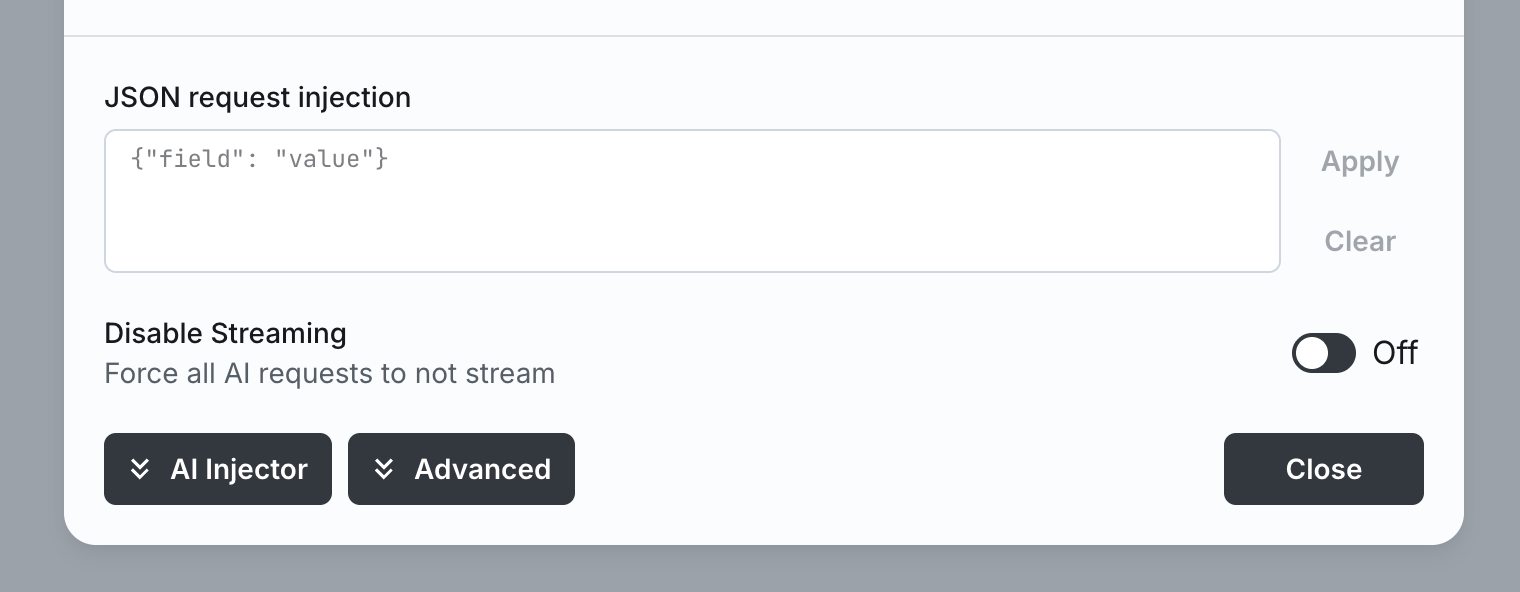
Two controls for advanced users; we discourage everyone else from touching them. The AI Injector merges a JSON blob into every request that goes out, overriding fields of the body - a capture taken while it is armed is not a record of normal behaviour, so leave it alone when you are auditing. Disable Streaming forces every AI request to run non-streaming.
What the inspector leaves out
- Request headers are blanked in every production build, on both transports, so a capture never shows an API key.
- Response headers, the raw stream bytes and the transport envelope - particles are the parsed stream, not the wire.
- Request bodies for the background contexts above, in production builds.
- Non-model traffic entirely: browsing, search, image generation, account and analytics calls. This is an AI request inspector.
- Anything the AI service does after receipt.
For a request that failed rather than one you did not expect: Error messages.
Related
BIG-AGI
Resources
© 2026 Token Fabrics·Built with passion in San Diego